How to Prepare a Print Ready File: Bleed, CMYK and 300 dpi
Bleed, trim and safe zone in mm, CMYK vs RGB, 300 dpi images, fonts and PDF export from Canva, Illustrator and CorelDRAW, explained plainly by a printer.
Himalaya Offset · 10 October 2026 · 4 min read
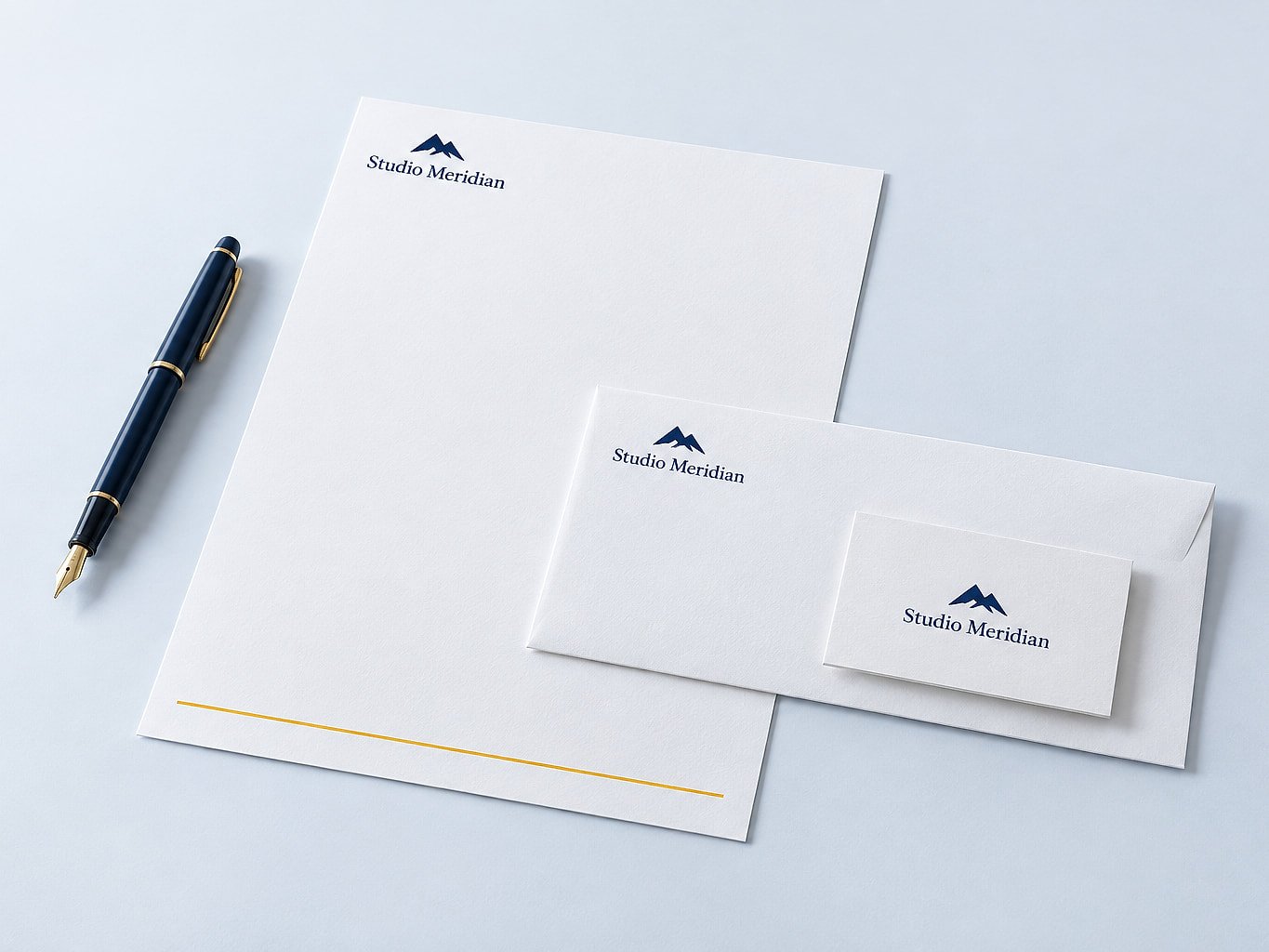
Many print delays start before the machine, with a file that looks fine on a phone but will not print cleanly. A print ready file is simply artwork set up the way the press and the cutter need it: the right size, bleed, CMYK colour, sharp images and fonts that will not go missing. Here is how, using a standard visiting card as the example.
Bleed, trim and safe zone
Cards are printed several to a sheet and then cut. No cutter is perfect to a fraction of a millimetre, so the file must allow a little movement.
- Trim size is the finished size. A standard visiting card is 88.9 x 50.8 mm (3.5 x 2 inches).
- Bleed is extra background running past the trim line, 2 mm on every side, so your document becomes 92.9 x 54.8 mm. Any colour or photo that touches the edge must carry on into the bleed, or you may see a thin white line after cutting.
- Safe zone is 3.5 mm inside the trim line. Keep all text, logos and phone numbers inside it, which leaves a live area of 81.9 x 43.8 mm.
Avoid thin borders near the edge; a tiny shift in cutting makes them look thicker on one side. Letterheads and flyers take 3 mm bleed and wider margins; see our artwork guidelines.
CMYK vs RGB
Screens make colour with light (RGB). A press makes it with four inks: cyan, magenta, yellow and black (CMYK). Some bright screen colours, especially neon greens, electric blues and vivid oranges, cannot be matched in ink and print duller.
Set your document to CMYK from the start so the screen is closer to the paper. Two notes on black:
- Small text should be plain black only (K 100). Black built from all four inks can show colour fringes on fine type.
- Large black areas look deeper as rich black, for example C 40, M 30, Y 30, K 100.
Images at 300 dpi
Photos should be 300 dpi at the size they will print. A logo copied from a website or forwarded on WhatsApp is usually far below that and prints soft or blocky. Enlarging it in software does not add detail. Ask whoever made your logo for the original vector file (AI, EPS, CDR, SVG or PDF).
Fonts
If your font is not installed on our system, it gets replaced and the layout shifts. Older non-Unicode Tamil fonts can turn into gibberish. Convert text to outlines or curves, or embed the fonts in the PDF, and keep an editable copy for future changes. On a visiting card, keep text at 7 pt or larger and lines at least 0.25 pt thick.
Exporting your print ready file as PDF
PDF keeps everything locked in place, so it is the safest format to send us.
Canva: create a custom size of 88.9 x 50.8 mm and turn on *Show print bleed* from the File menu. Canva's bleed is about 3 mm, which is fine. Stretch backgrounds right to the outer edge. Download as *PDF Print* with *Crop marks and bleed* ticked, and pick the CMYK colour profile if your plan offers it.
Illustrator: set the artboard to 88.9 x 50.8 mm with 2 mm bleed in Document Setup, and switch File > Document Color Mode to CMYK. Outline your text (Type > Create Outlines), then Save As Adobe PDF with the *High Quality Print* or *PDF/X-1a* preset. Under Marks and Bleeds, tick trim marks and *Use Document Bleed Settings*.
CorelDRAW: set the page to 88.9 x 50.8 mm with 2 mm bleed, convert text to curves (Ctrl+Q), then use Publish to PDF with the *PDF/X-1a* or *Prepress* preset. In the Prepress tab, tick bleed limit and crop marks.
Common mistakes
- Phone numbers or names sitting too close to the edge.
- Backgrounds stopping at the trim line instead of running into the bleed.
- A card designed in the middle of an A4 page instead of at card size.
- Low-resolution logos taken from a website or a chat.
- Missing fonts, or Tamil text that comes out as boxes.
- Front and back sent in the wrong order or orientation.
- Typos in phone numbers and email IDs. Read every digit aloud once.
A proof before anything prints
Every order gets a free digital proof, and nothing goes on the press until you approve it. If you would rather skip the setup, start from a template or ask our team to design it, or call or WhatsApp +91 88384 35916.
When your file is ready, you can upload it on the standard visiting cards page and see the price before you order.
Questions about your job?Talk to our team in Vellore on WhatsApp or call, Monday to Saturday.
Contact usPrint it with us
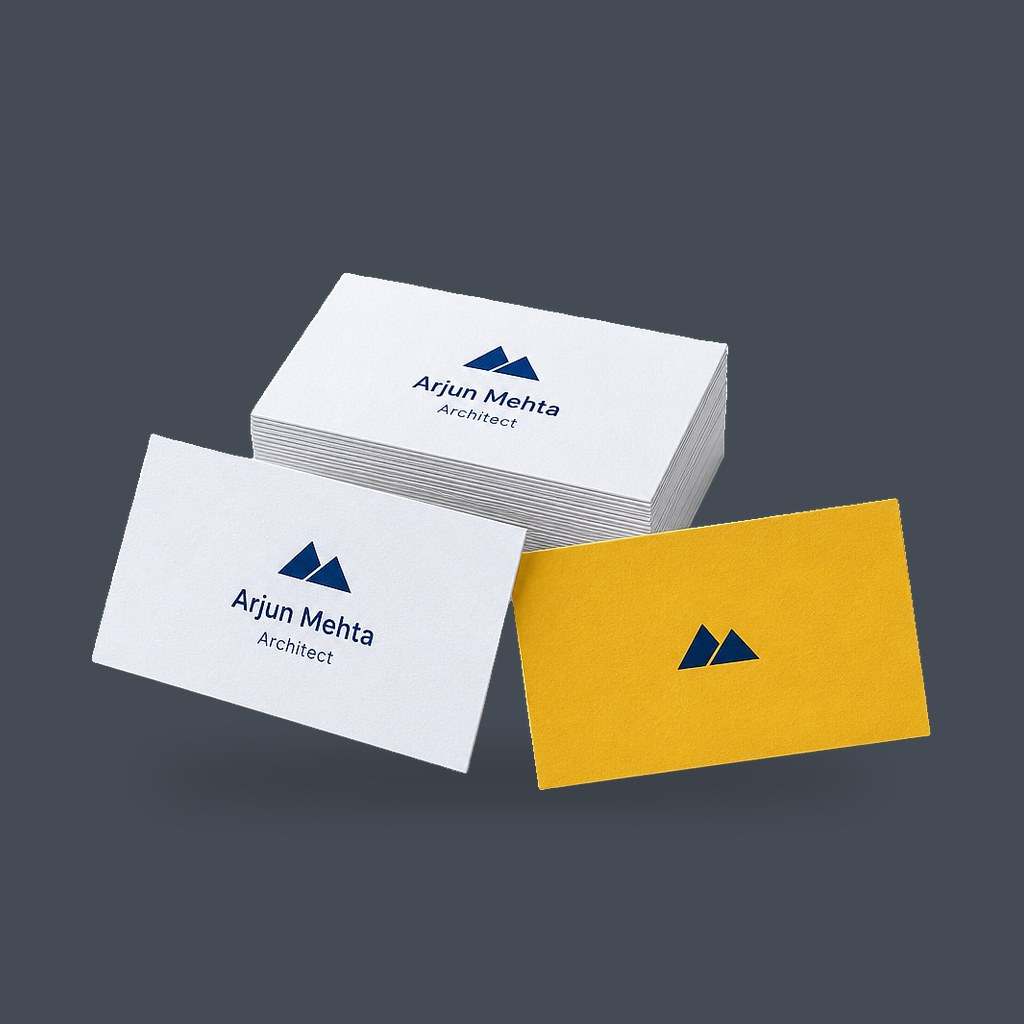
₹200
for 100 · ₹2.00/pc + GST
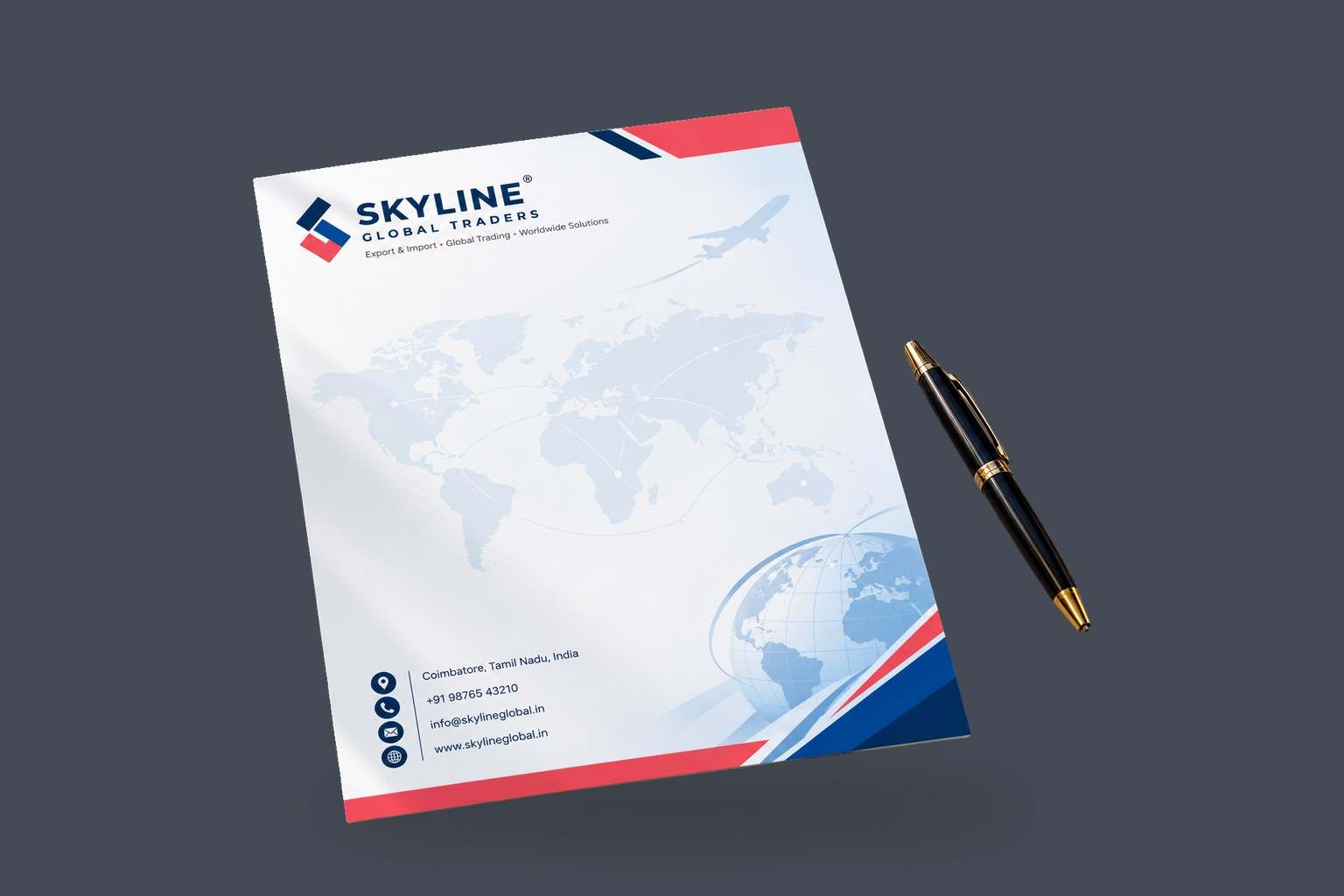
₹570
for 50 · ₹11.4/pc + GST
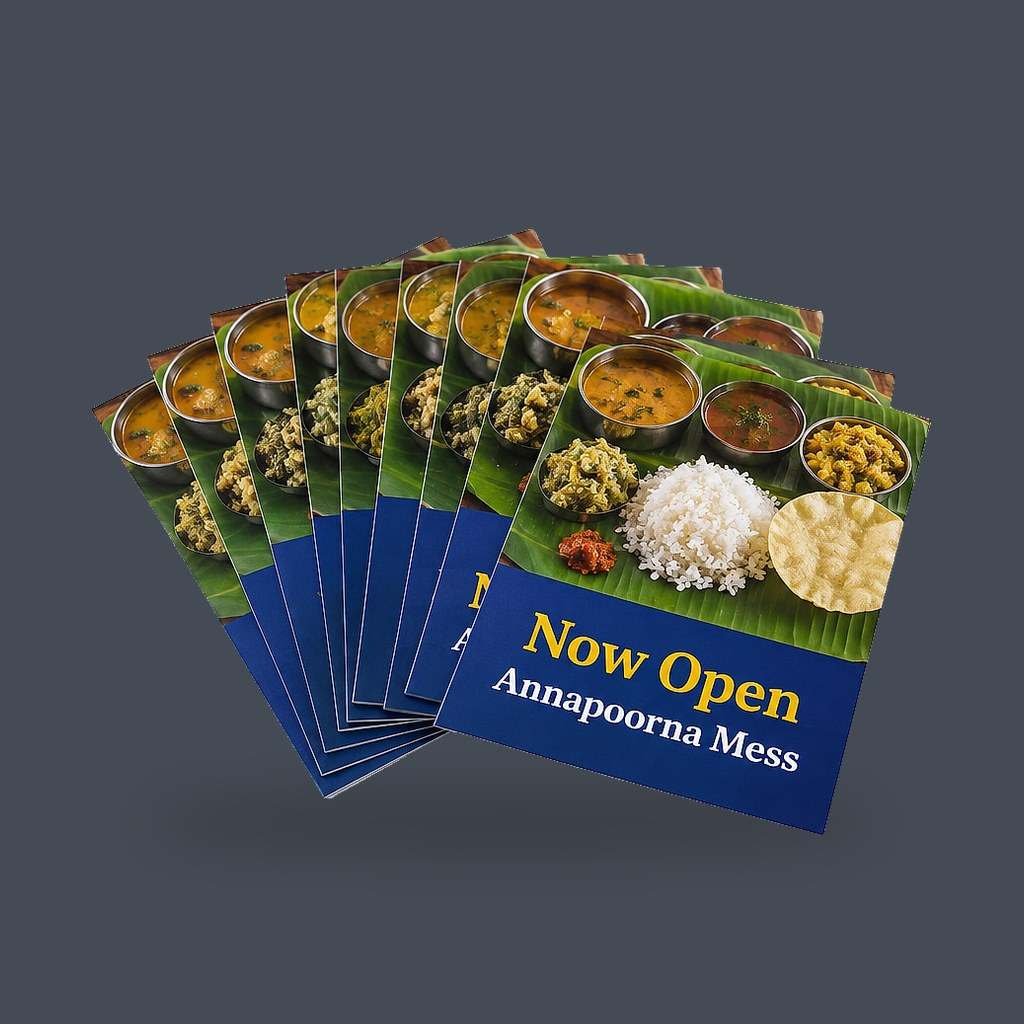
₹3,500
for 500 · ₹7.00/pc + GST